Trading Fee Audit
Upload a Binance, OKX, Bybit, Bitget or Gate trade-history export to total the fees you paid, your effective fee rate and yearly cost. Runs in your browser.
What is the Trading Fee Audit?
The fee audit reads the trade history your exchange exports and totals the fees you actually paid, traded volume, effective fee rate, maker/taker mix and funding, with a yearly estimate.
How do I use the Trading Fee Audit?
Export your trade history (CSV, XLSX or ZIP) from the exchange website and drop it in; for an unrecognised layout map the fee and notional columns, then enter a USD price for any non-stablecoin fee coin.
What should I watch out for?
Only rows in the file are counted; missing periods, sub-accounts and fees charged outside the export are excluded. Rebates are never applied automatically, and existing accounts usually cannot add a referral code later.
How the Trading Fee Audit works
Short answer: Export your trade history from the exchange and drop the file into the audit: it adds up the fees in the file, divides them by the traded notional to give your effective fee rate, and annualises both. Example: paying 0.10% on 20,000 USD of volume a month costs about 240 USD a year, and every 10% of fees returned by a verified rebate saves about 24 USD of that.
The trading-fee audit reads the trade-history file your exchange lets you export (CSV, XLSX or a ZIP of them) and shows what you actually paid: total fees in USD, traded volume, effective fee rate, maker / taker mix, funding and rebates already credited, plus a yearly estimate. It recognises the usual Binance, OKX, Bybit and Gate layouts and lets you map the columns of any other file. The file is read inside your browser and is never uploaded.
What you enter
- One or more export files: CSV, TSV, XLSX or ZIP (for example Binance spot Trade History, Binance USDⓈ-M futures Transaction History, OKX Trading history, Bybit Transaction Log, Gate bills)
- Exchange: picked automatically from the file layout, or chosen by you; it sets the standard VIP 0 rates used for comparison
- Market: detected per row (spot or futures), or forced to all spot / all futures
- Column mapping for files the audit does not recognise: time, pair, side, price, quantity, notional, fee, fee coin, maker / taker
- USD price for any coin that fees or volume were paid in other than a stablecoin (for example BNB), if such fees are present
- Optional: the rebate percentage you have verified in your own account
What it shows
- Fees paid in USD, traded volume, effective fee rate in % and basis points, period covered and annualised fees
- A spot / futures table: fills, volume, fees, effective rate, maker / taker / unknown counts and the cost at standard rates
- Raw fee totals per coin, net funding (positive = received) and rebates already credited when the file contains them
- Warnings for rows that cannot be priced, fee-only rows, contract-unit fills and duplicate rows from overlapping exports
- What a rebate changes: fees saved per 10% of fees returned, and fees after the rebate you enter
How to use it
- Export your trade history from the exchange website (the export steps for Binance, OKX, Bybit, Bitget and Gate are under the tool).
- Drop the file on the upload area or choose it; add several files to cover a longer period — repeated rows from overlapping files are skipped.
- Check the detected layout; for an unrecognised file, map at least the fee column and either notional or price and quantity.
- Confirm the exchange and enter a USD price for any non-stablecoin fee coin listed.
- Read the fees paid, effective rate and annualised cost, then compare them with the standard rates and the rebate scenario.
Formula
Fee in USD = fee × USD price of the fee coin (stablecoins = 1; the fill's own price when the fee is charged in the base coin; otherwise the price you enter). Notional = the amount column, or quantity × price when the quantity is in the base coin. Effective rate = Σ fees ÷ Σ notional over fills where both are known. Annualised = total × 365 ÷ days between the first and last row (shown for 7 days or more). Standard cost = Σ notional × VIP 0 maker or taker rate (unknown roles counted as taker). Fees after rebate = fees × (1 − rebate % ÷ 100).
Worked example
The built-in example holds eight Binance spot fills from 2 July to 12 October 2026 (102.5 days): 17,357.35 USD of volume and 17.36 USD of fees, one of them paid as 0.000012 BTC and valued at the fill price of 108,420.50 USD (1.30 USD). Effective rate = 17.36 ÷ 17,357.35 = 0.100%, the same as Binance's standard spot rate. Annualised: 17.36 × 365 ÷ 102.5 ≈ 61.81 USD in fees on about 61,808 USD of volume. Each 10% of fees returned would have saved about 1.74 USD over the period, or about 6.18 USD a year.
How to read the result
- An effective rate equal to the standard rate means no VIP tier, token discount or rebate reduced your fees; a lower rate means one of them already applied.
- Where maker and taker rates differ (for example OKX spot 0.08% / 0.10%, futures 0.02% / 0.05% at VIP 0), a higher maker share lowers the effective rate.
- Funding is shown separately: it is a payment between long and short positions, not an exchange fee, and can be positive or negative.
- Annualised figures assume the rest of the year looks like the period in the file; a short or unusual period gives a rough number.
Limits and cautions
- Only what is in the file is counted: missing periods, sub-accounts, other products and fees charged outside the export are not included.
- Fees paid in a non-stablecoin need a USD price; until you enter one they are left out of the USD totals and listed separately.
- Futures rows counted in contracts (“cont”) have no notional in the file, so only their fees are counted.
- Rebates are never applied automatically: an existing account usually cannot add a referral code later, so check the exchange's rules before counting on one.
Key terms
- Effective fee rate
- Total fees divided by total traded notional for the same fills, in percent; it reflects your real tier, discounts and maker / taker mix.
- Notional
- The value of a fill in the quote currency: quantity × price, or the amount column in exports that state it.
- Maker / taker
- A maker order rests on the order book and adds liquidity; a taker order fills immediately against it. Many exchanges charge makers less.
- Basis point (bps)
- One hundredth of a percent: 0.10% = 10 bps.
- Funding fee
- A periodic payment between long and short holders of perpetual futures; it is not charged by the exchange and can be received or paid.
Common questions
Is my trade history uploaded to your server?
No. The file is read with your browser's file reader and unpacked in the page; the audit makes no network request with its contents, and nothing is stored after you close the tab.
Which files does the audit recognise?
Binance spot Trade History, Binance USDⓈ-M futures Transaction History and the wallet statement CSV, OKX Trading history (including the ZIP download), Bybit's Unified Trading Account Transaction Log and Gate bills. Other CSV or XLSX files work once you map the fee column and either notional or price and quantity.
Why is my effective fee rate lower than the published fee schedule?
A VIP tier, a fee discount for paying in the exchange's token or a referral benefit may already be included in the fees the exchange charged. The audit shows what was actually charged, so the gap to the standard rate is the discount you already receive.
Can I still get a fee rebate on an existing account?
Usually not by entering a code later. Binance allows binding within 30 days of signup and before any deposit or trade, and affiliates can recall or rebind some accounts that never had a referrer; OKX can reconnect accounts inactive for 180 days. The existing-account page for each exchange lists the official rules.
Sources and update cadence
- OKX — How do I download my account statements? — where to export the file
- Bybit — How to self-export my account data — where to export the file
- Bitget — How to export your account data on Bitget? — where to export the file
- Gate — How to download billing history — where to export the file
Further reading on this site
- Existing accounts: can you still add or change a referral code?
- Exchange fee comparison
- Rebate calculator
- Funding rates today
Last reviewed:
How to export your trade history
Binance
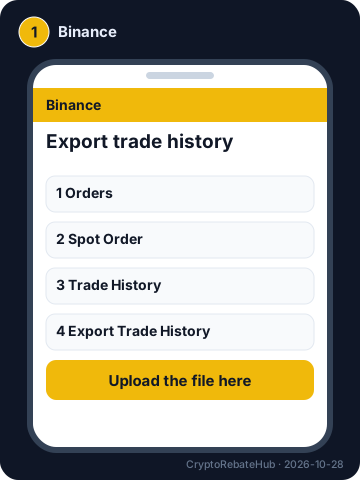
- On the website, open Orders → Spot Order → Trade History and choose Export Trade History.
- Pick the period (split long histories into several files; each file holds up to 10,000 lines).
- For futures, open Orders → Futures Order → Transaction History, export the USDⓈ-M “Transaction History” (not “Trade History”), then Generate → Download.
Spot “Trade History” (fees and volume); USDⓈ-M futures “Transaction History” (commission and funding rows); wallet “all statements” CSV (fees, funding, referral kickbacks).
OKX
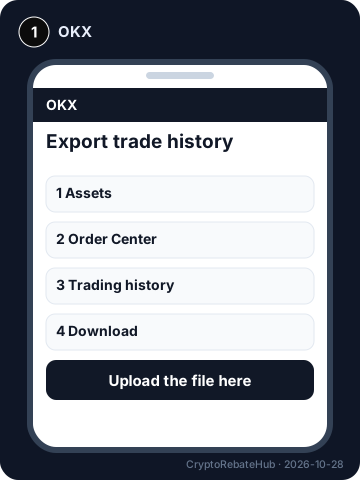
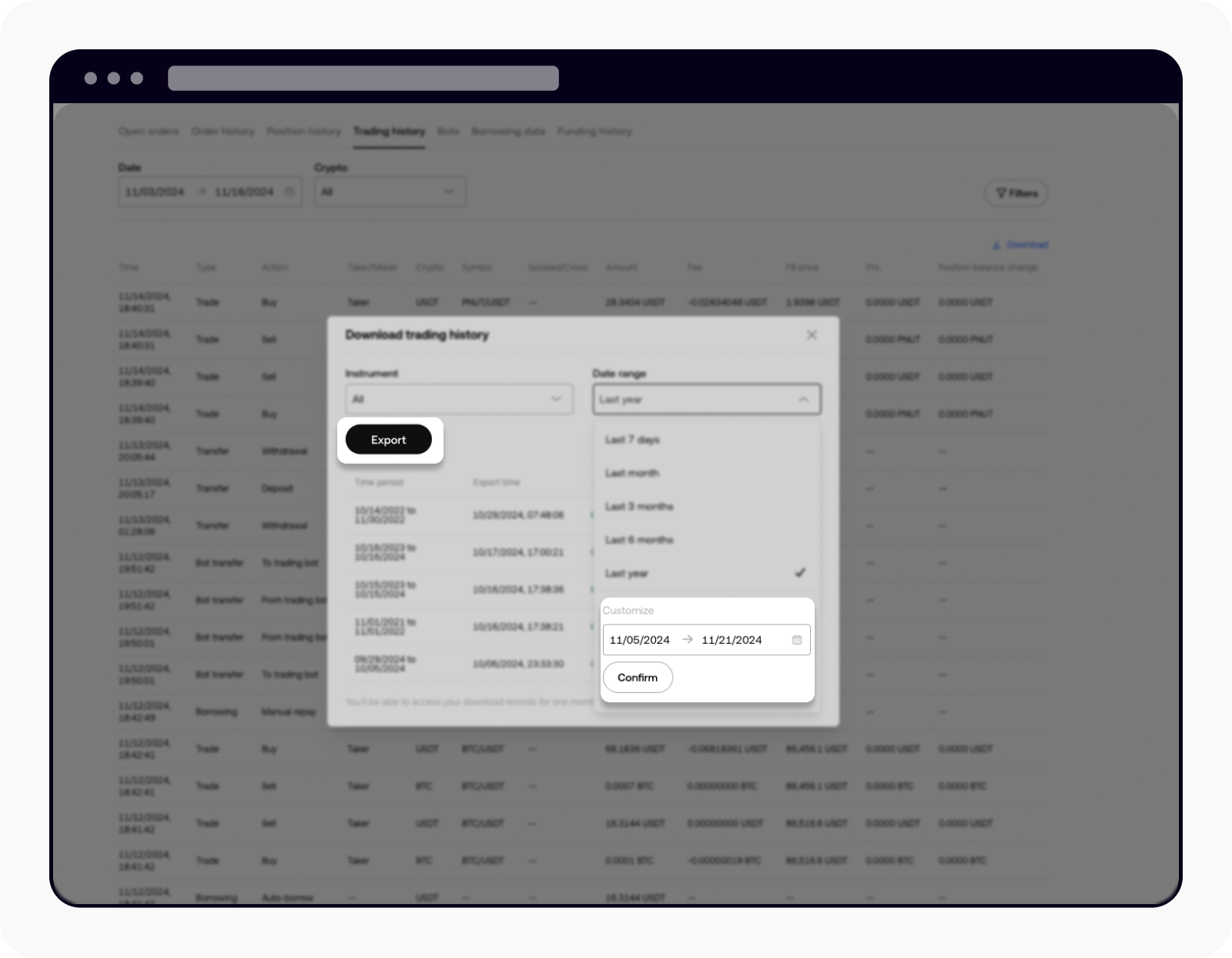
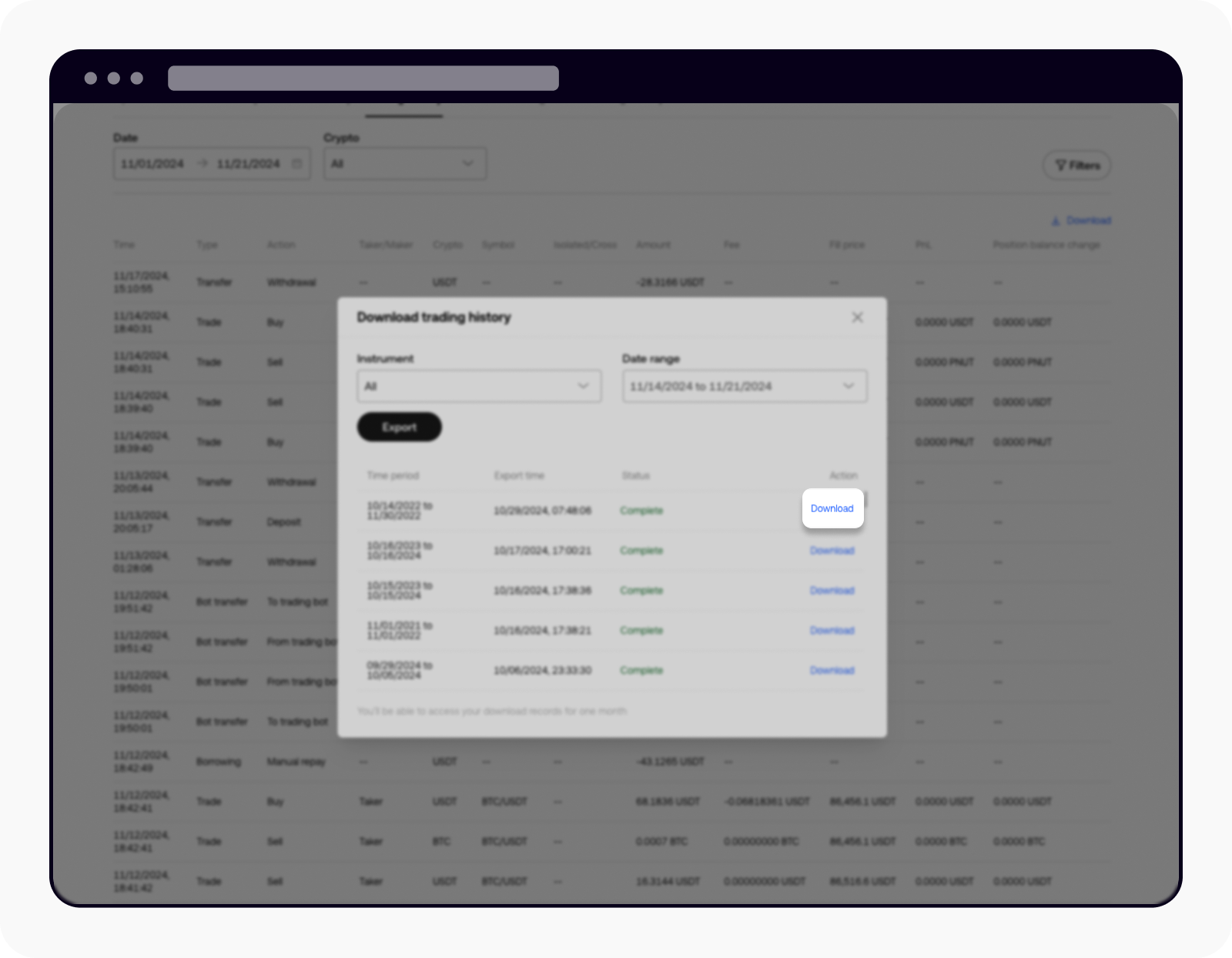
- Hover over Assets → Order Center and open Trading history.
- Choose Download, pick the date range and select Export; when it is ready, select Download.
- Upload the ZIP as it is — the audit unpacks it. Records are available from February 2021.
“Trading history” file: every fill with fee and fee unit; spot volume is computed from amount × filled price (contract-unit futures rows count fees only).
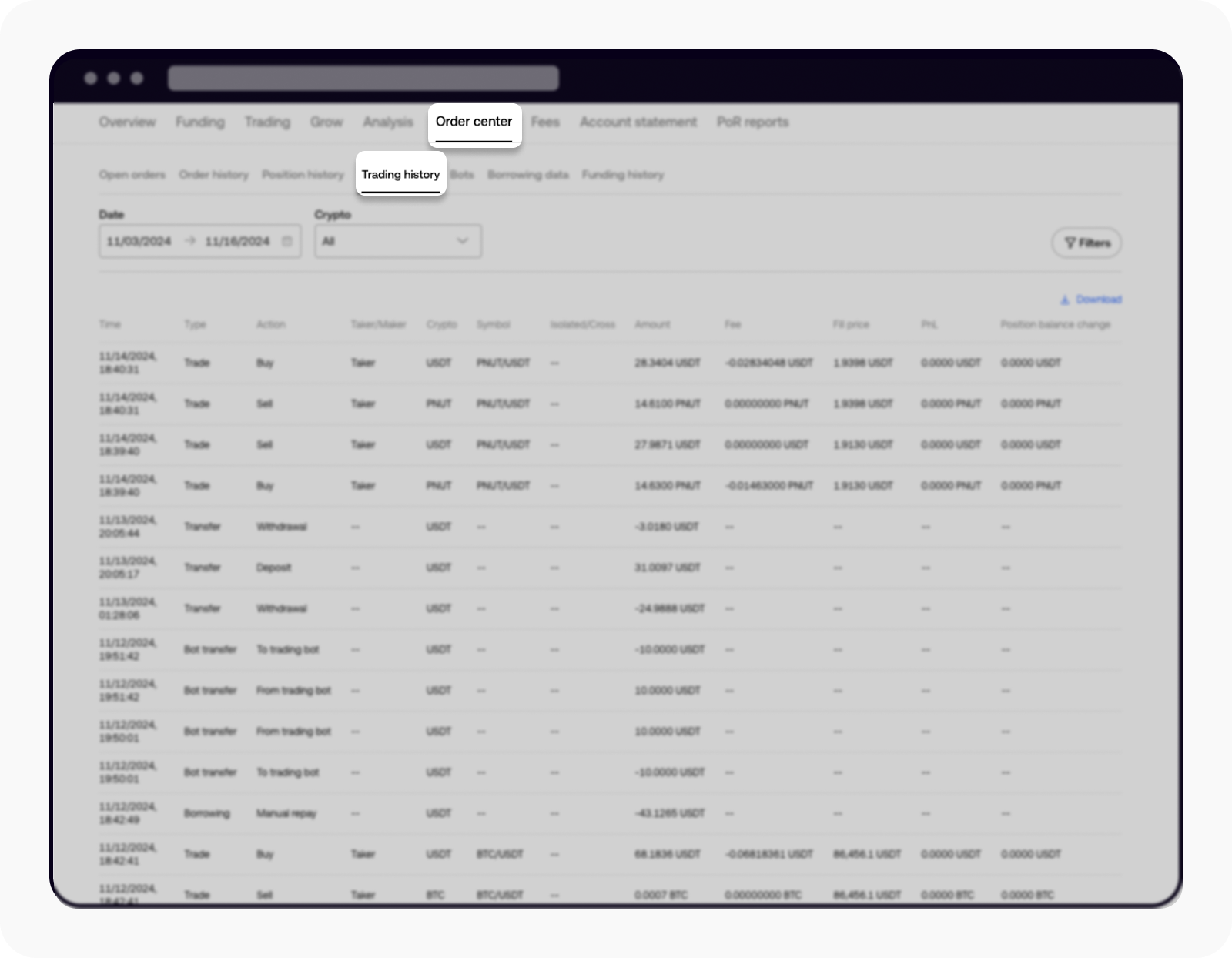
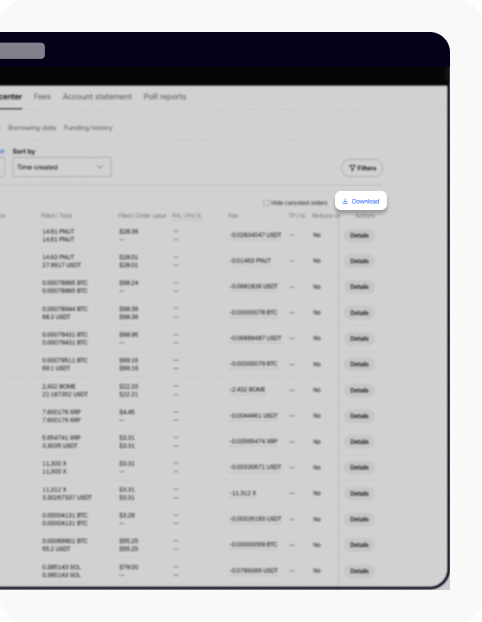
Source: OKX — How do I download my account statements? (2026-10-16)
Bybit
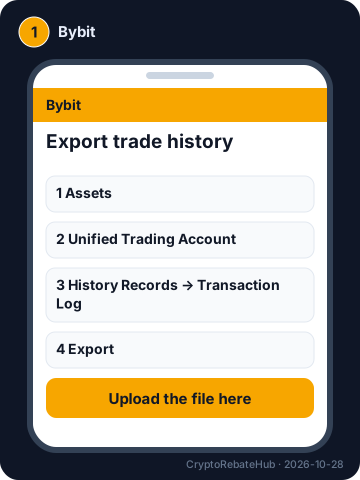
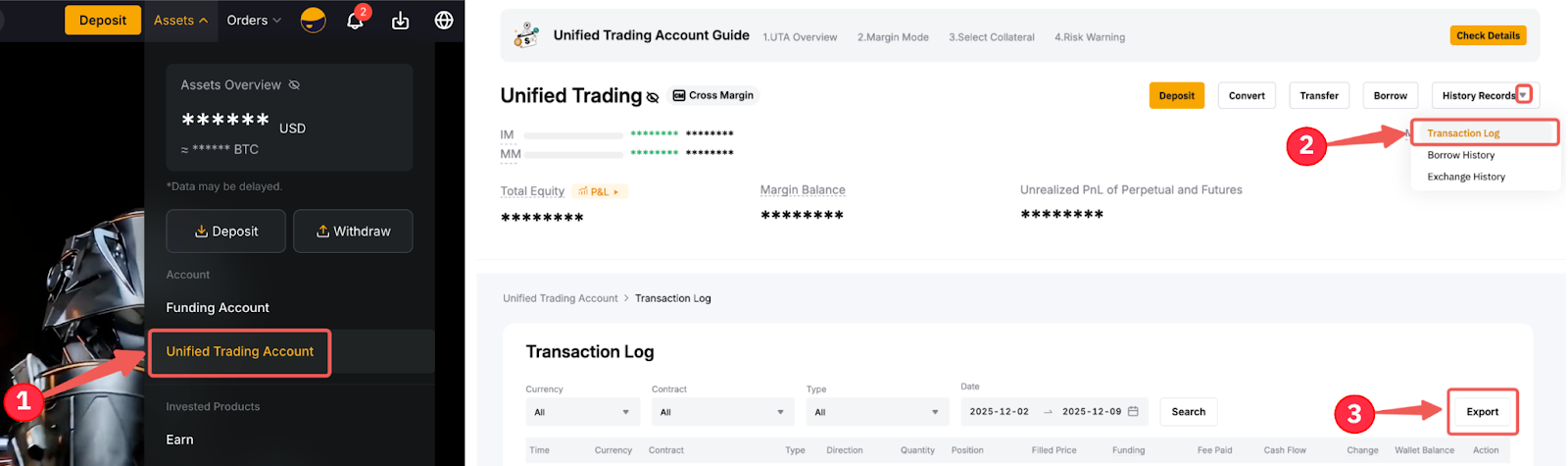
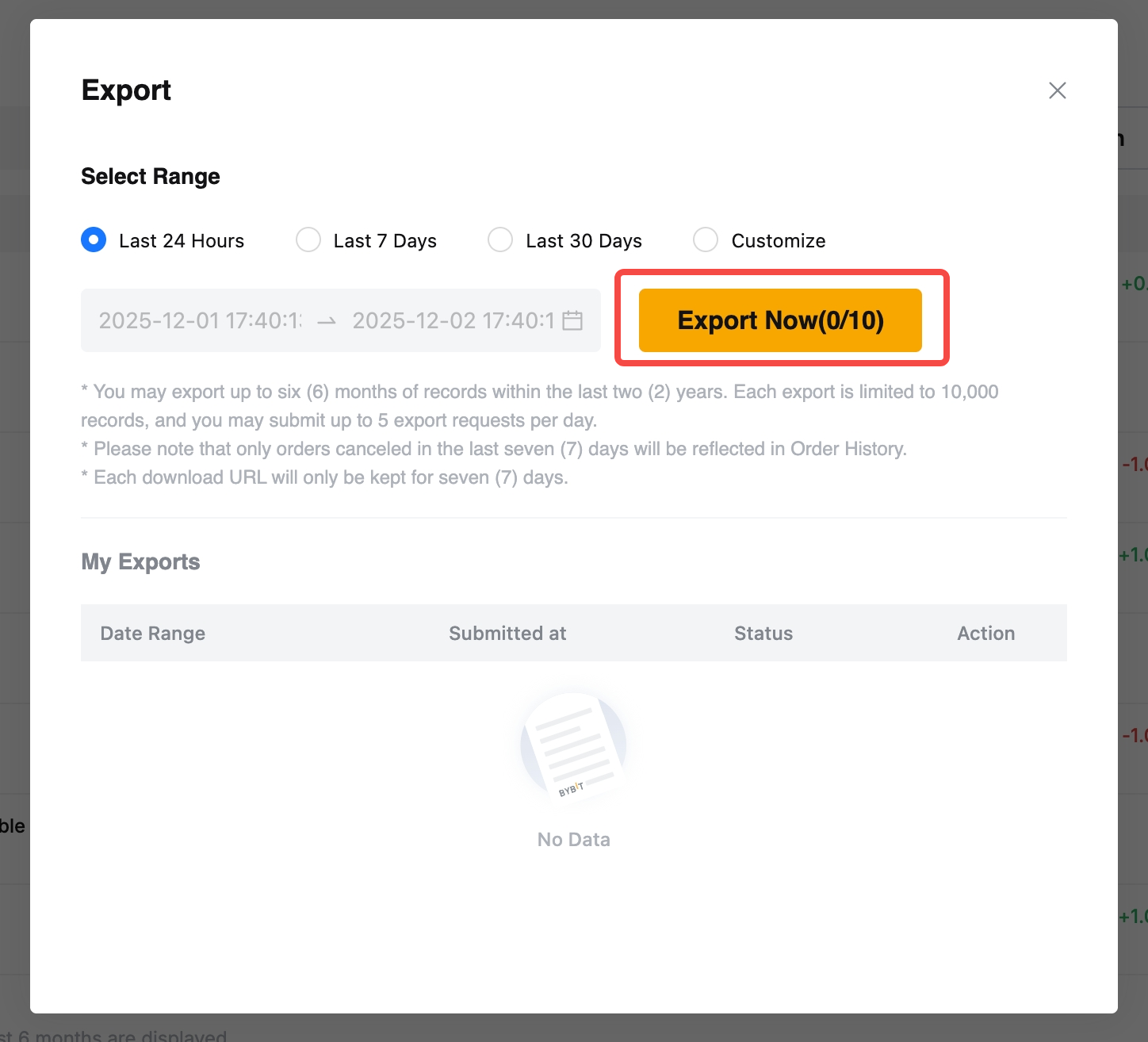
- On the website, go to Assets → Unified Trading Account → History Records → Transaction Log and choose Export.
- Select up to six months within the last two years and Export Now (each file up to 10,000 entries; five exports a day).
- The Bybit app cannot export account data — use the website.
Unified Trading Account “Transaction Log”: trade rows (quantity × filled price, fee paid, fee rate → maker / taker) and settlement rows (funding).
Source: Bybit — How to self-export my account data (2026-09-30)
Bitget
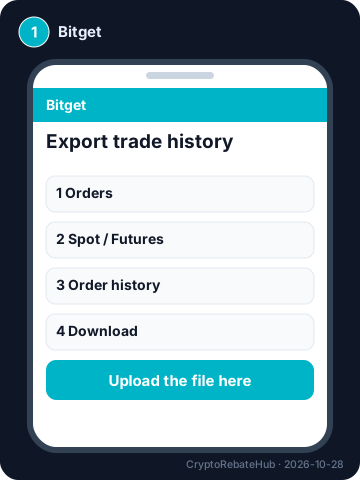
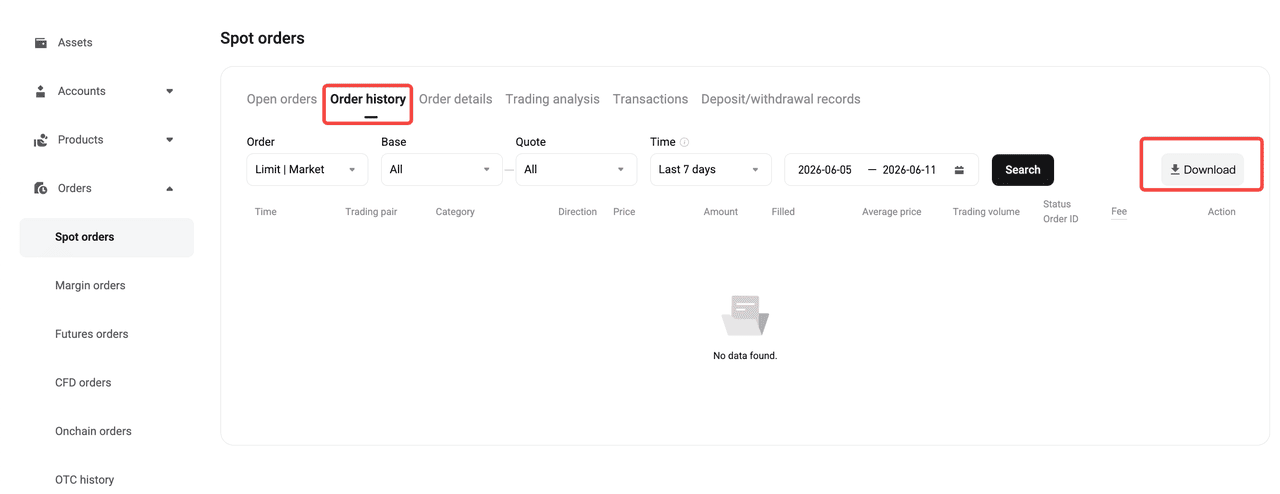
- On the website, open the order page, choose the order type on the left (for example Spot) and stay on Order history.
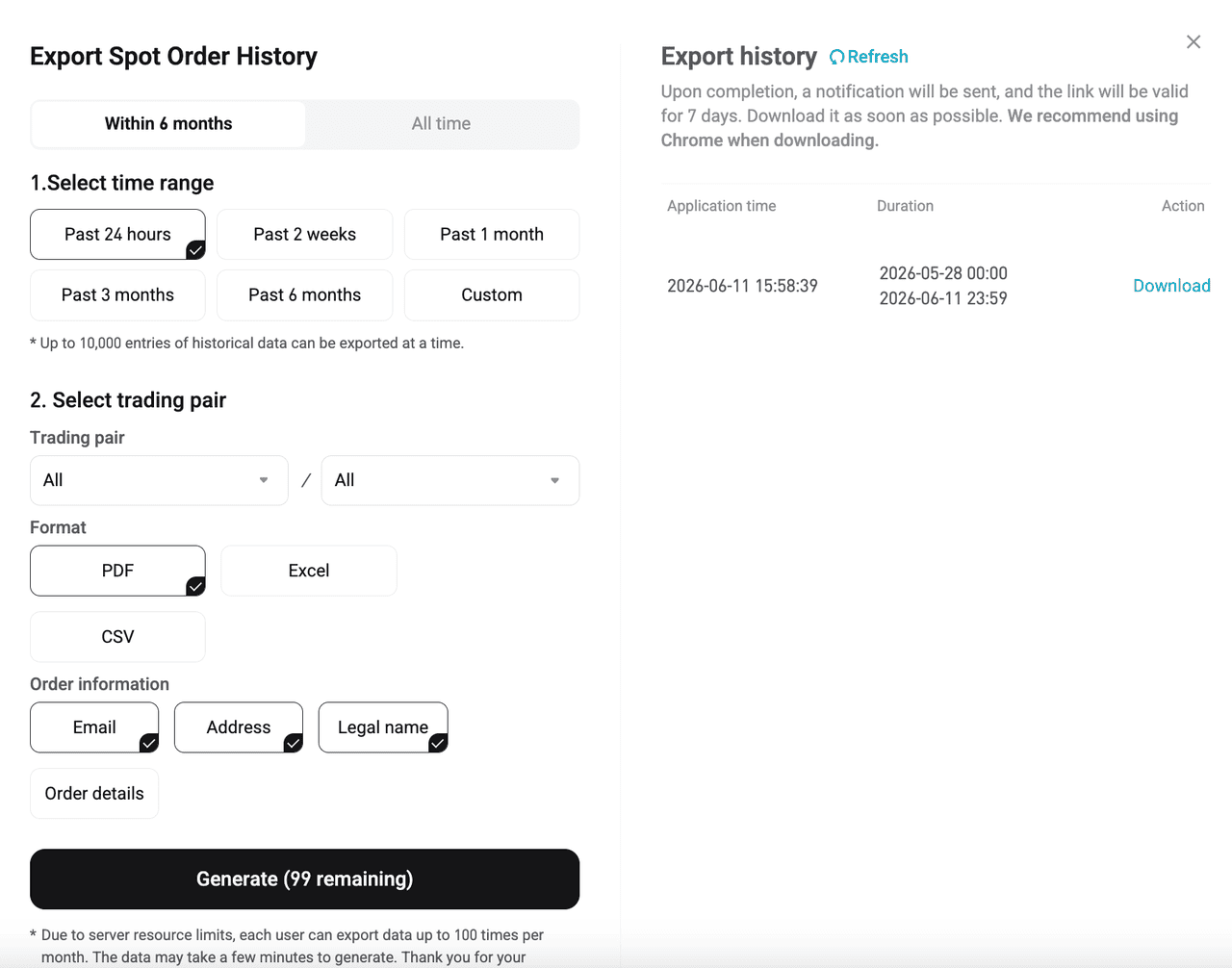
- Select Download, set the time range, pair and file format (CSV), then Generate → Refresh → Download.
- One request covers up to two years (“Within 6 months”: up to 10,000 records); the app cannot export.
Order or trade history export. Bitget’s column names are not published, so the audit maps them by name (fee, fee coin, price, quantity, amount); check the mapping it shows.
Source: Bitget — How to export your account data on Bitget? (2025-03-14)
Gate
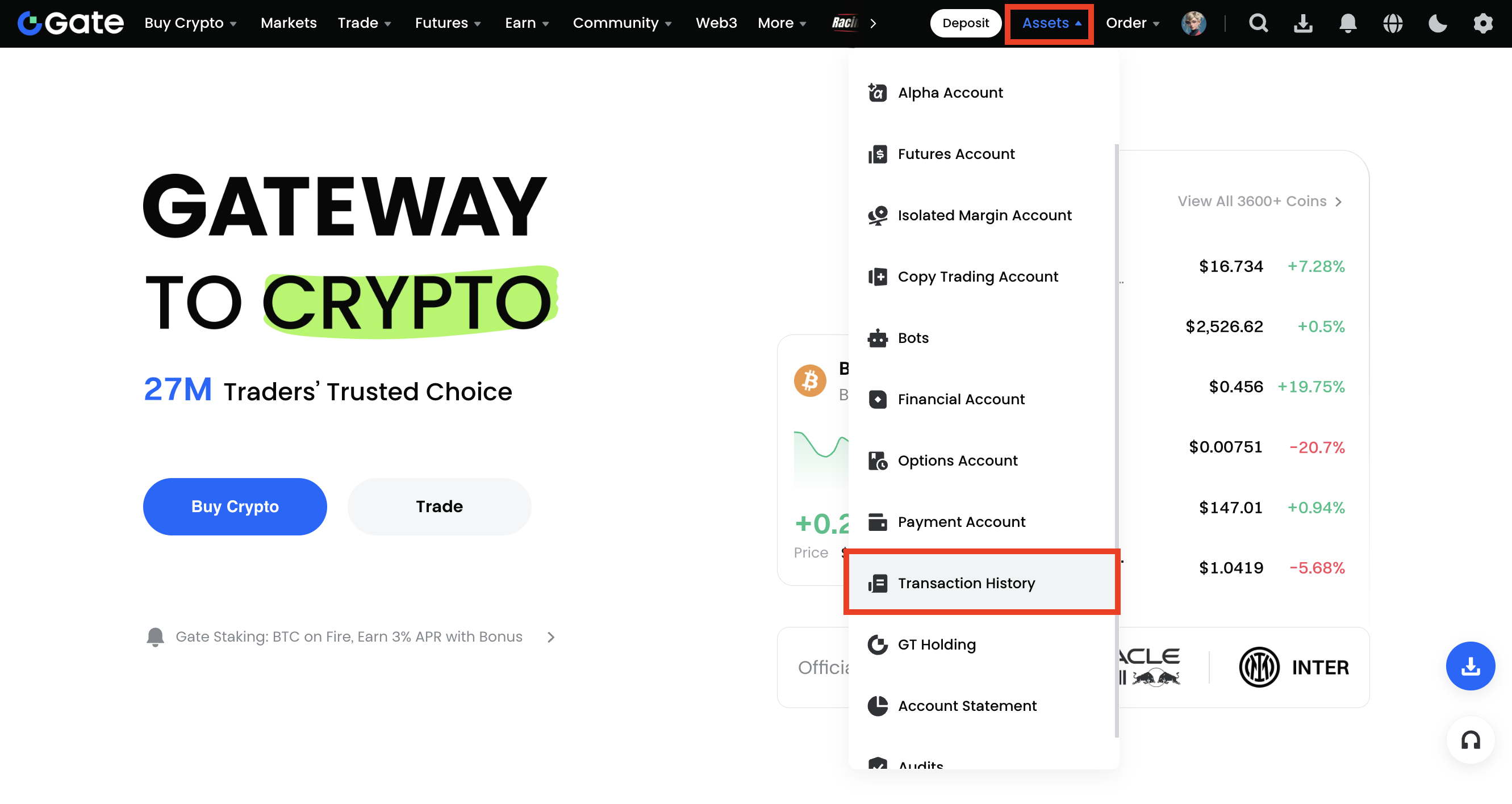
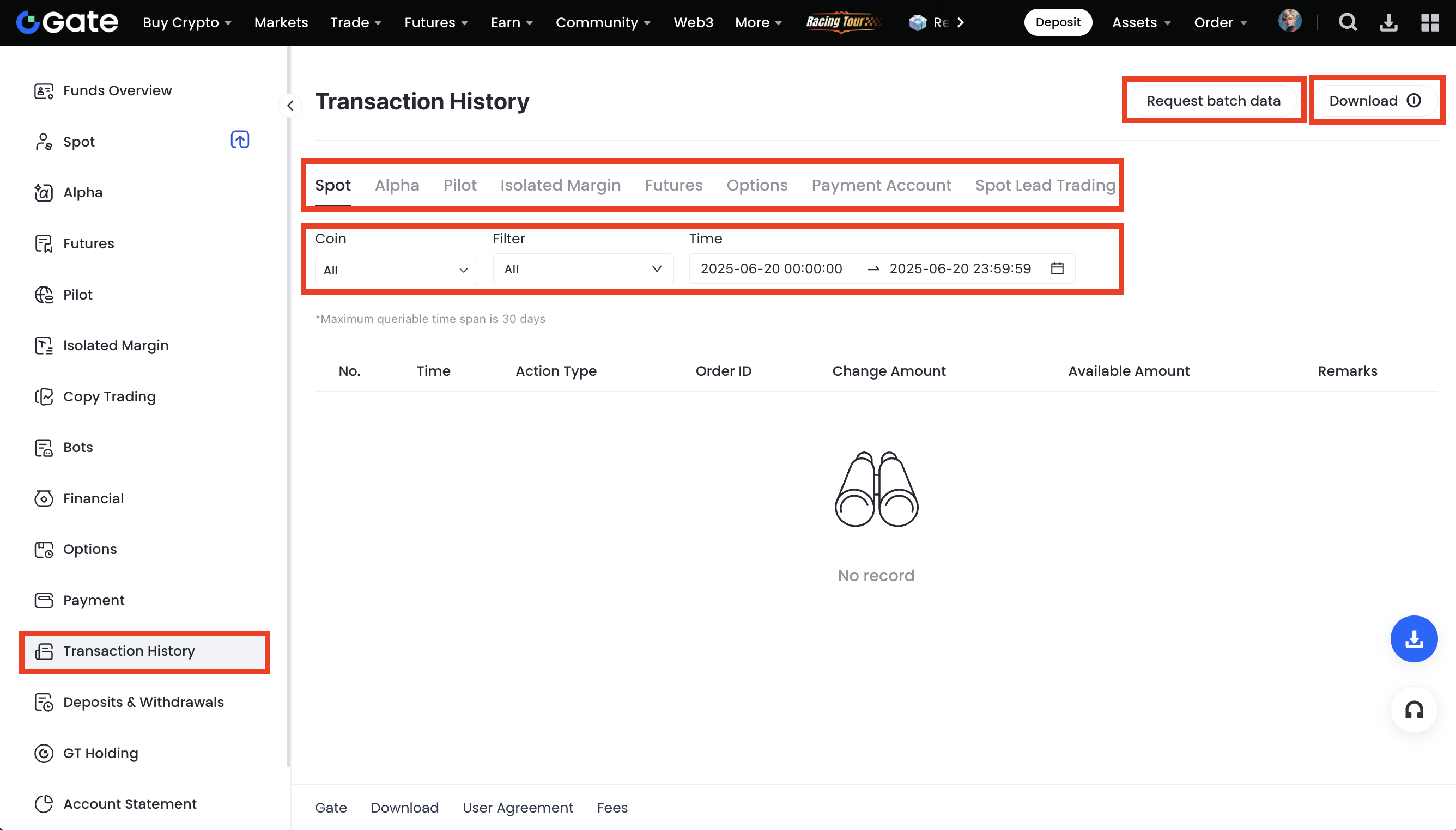
- Bills: open Assets → Transaction History, filter coin and period, then Download.
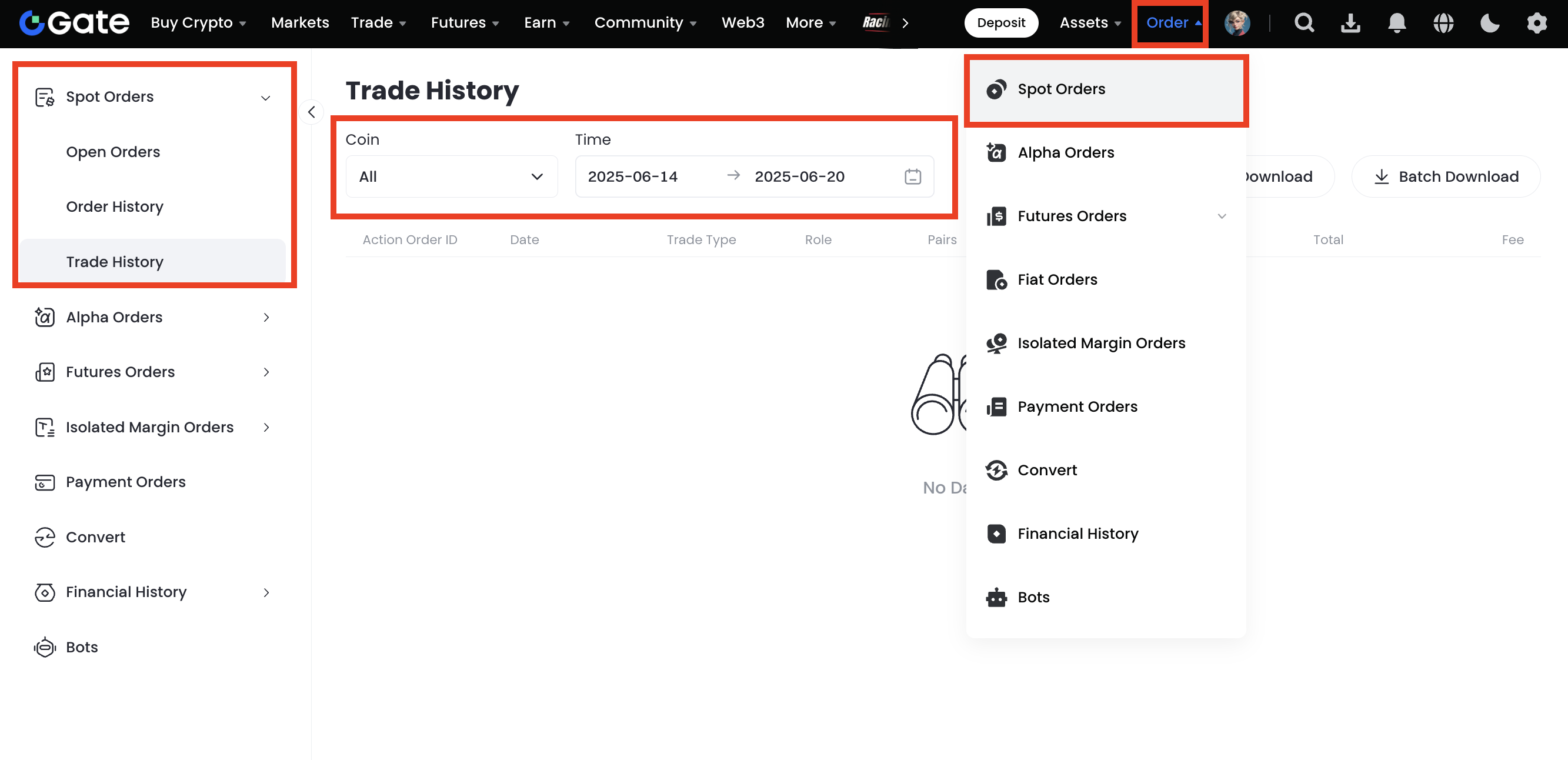
- Trades: open Order → Spot Orders → Trade History, choose the market and period, and use the download button at the top right (up to 30 downloads a day).
- Upload either file; for the trade file, check the column mapping the audit shows.
Bills (“Transaction History”): fee and funding rows (fees only, no volume); or the spot Trade History file, mapped by column names.
Source: Gate — How to download billing history (2021-09-06)
Checked:
🌡 Latest BTC cycle reading: 40/100 · Neutral Zone (as of 2026-10-29). BTC Cycle Thermometer: Bitcoin top or bottom?
Free to use with no signup. Read Bitcoin valuation, cycle, backtests and alerts, and calculate fees, slippage, funding and post-rebate cost before trading.
