To use Binance you register with an email or phone number, pass identity verification (review usually takes up to 48 hours), fund the account by depositing crypto or buying with a card, place orders under Trade > Spot, and withdraw from Assets > Overview > Withdraw. The two mistakes that lose money are choosing a network the other platform does not support and leaving out a required memo.
Binance at a glance
| Sign-up | Email or phone number; referral ID is optional and is entered on the sign-up form |
|---|---|
| Verification | Required for new users before deposits and trades; review usually within 48 hours |
| Funding | Crypto deposit, or card purchase (Visa / Mastercard, Apple Pay, Google Pay) |
| Spot fee, regular user | 0.1% maker / 0.1% taker; 0.075% / 0.075% in the "BNB 25% off" column |
| Withdrawal check | Passkey or 2FA; first withdrawal to a new address shows a safety prompt |
| Referral ID used on this site | WLFI47 |
Referral ID on this site: WLFI47. Enter it on the sign-up form; whether a fee benefit applies is shown by Binance at registration.
Before you start
Binance serves different regions through different entities, and the products, payment methods and verification documents you see depend on where you live. Check that your country is supported on the sign-up page before you send any money.
Use only the official domain binance.com and the official app. Type the address or use a bookmark; do not follow links from search ads, private messages or emails you did not expect.
Step 1 — Create the account
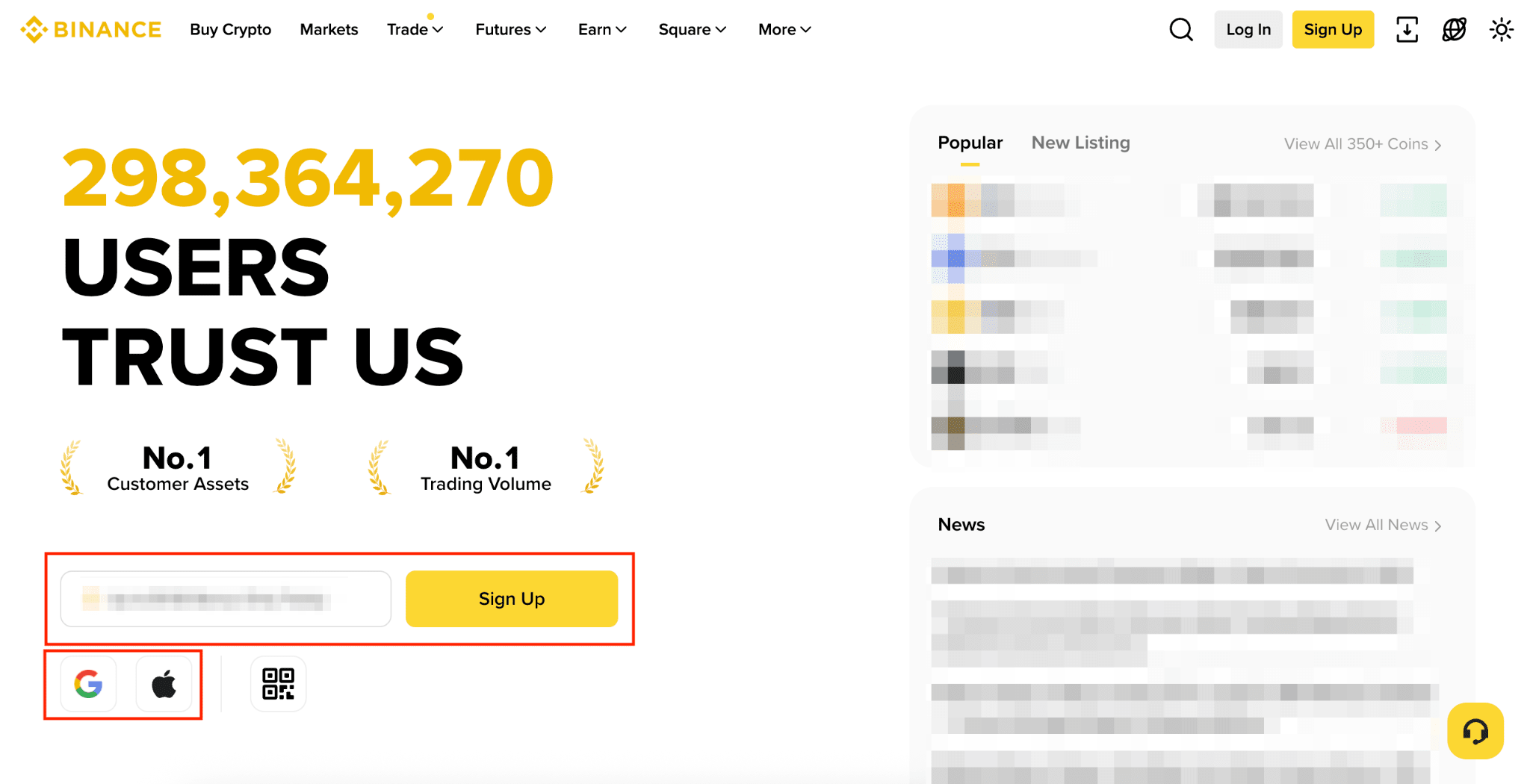
Registration takes a few minutes. The referral ID field is optional; fill it in before you submit if you want to use one.
- Open the sign-up page on binance.com and choose email or phone number.
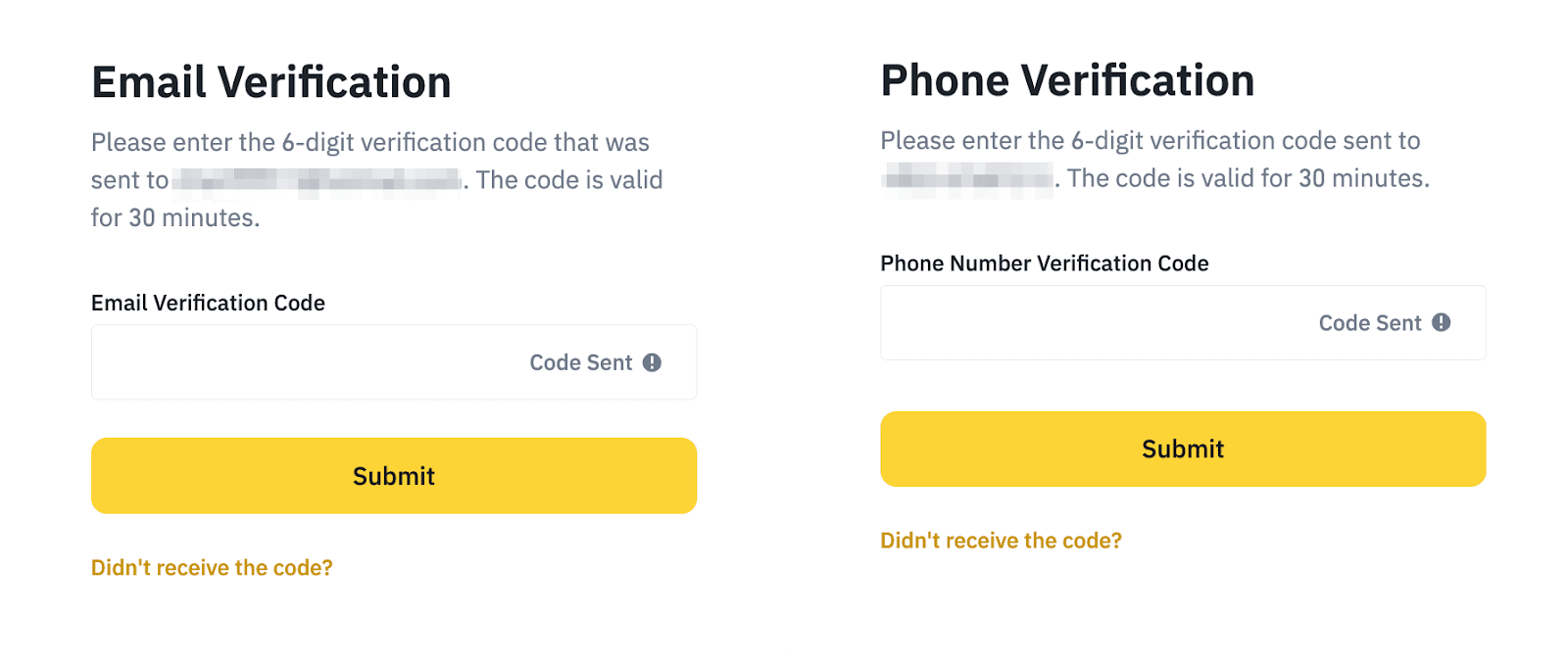
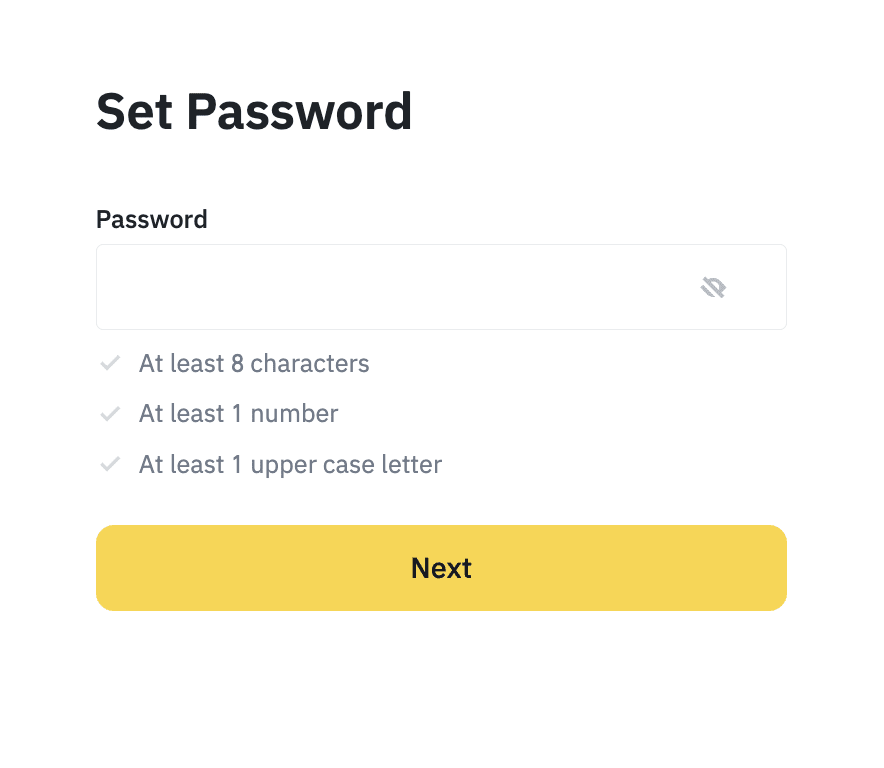
- Enter the verification code Binance sends you and set a password.
- If you want to use a referral ID, enter it in the referral field on the form (this site uses WLFI47).
- Finish the form, then turn on a passkey or an authenticator app before you deposit.
Step 2 — Verify your identity
Binance states that all new users must reach "Verified" status before they can deposit or trade. Existing users who are not verified are limited to withdrawing and closing positions.
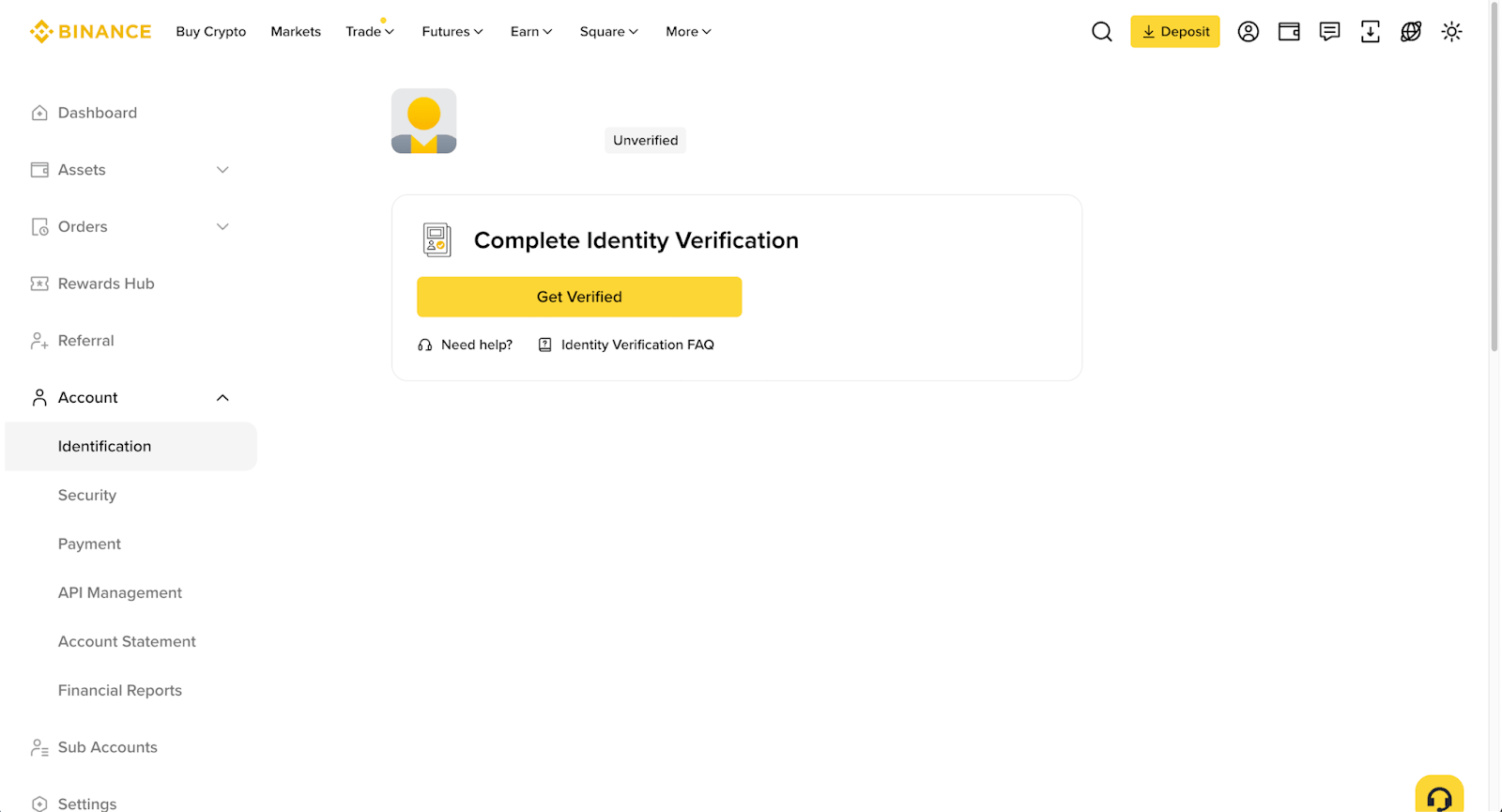
- Hover over the profile icon, open "Account" > "Identification" and click "Get Verified".
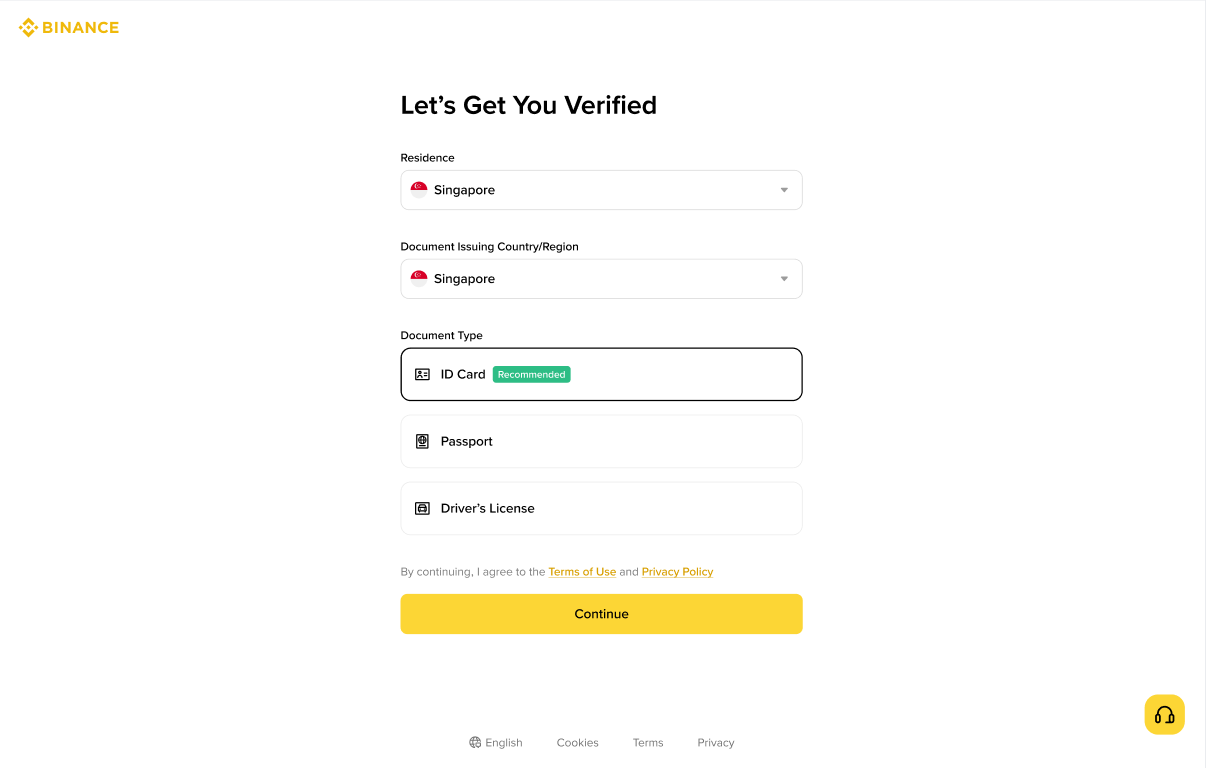
- Select your country of residence, the country that issued your document, and the document type. Most users can use a passport, ID card or driver's licence.
- Upload the front and back of the document, or scan the QR code to continue on your phone.
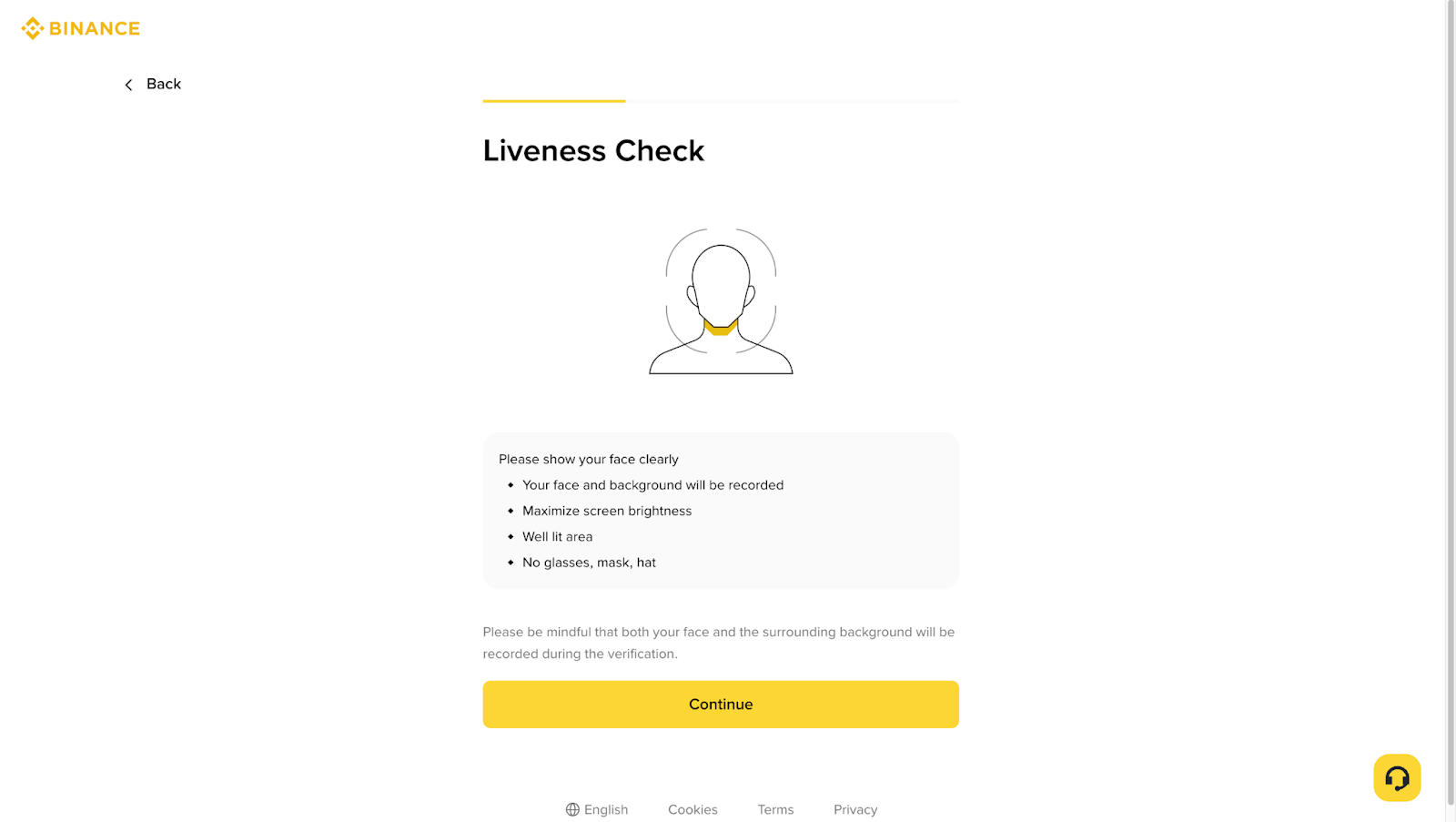
- Complete the liveness check with good lighting and no hat, glasses or filters.
- Confirm your personal information and click "Continue". It cannot be changed after you confirm.
- Wait for the review. Binance says it usually finishes within 48 hours and notifies you by email.
Step 3 — Deposit crypto
A crypto deposit is a withdrawal from another platform or wallet to your Binance address. The network you choose on Binance must be the same network you choose on the sending side.
- Log in and click "Deposit", then "Deposit Crypto".
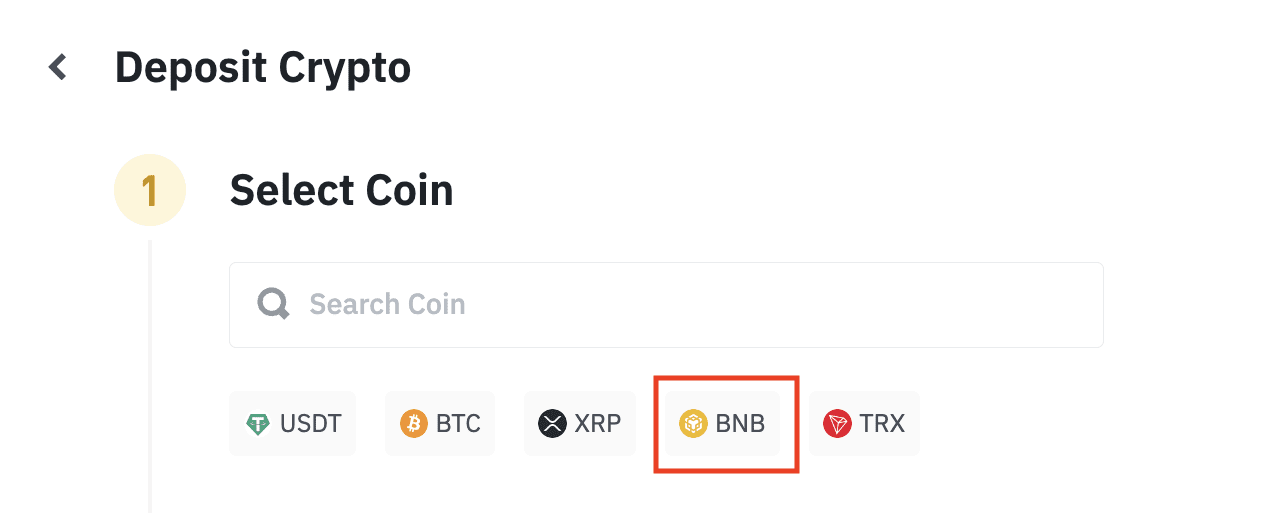
- Select the coin, for example USDT.
- Choose the deposit network. Pick the one the sending platform supports, not simply the cheapest one.
- Copy the address with the copy icon or use the QR code. If the page shows a memo or tag, copy it as well.
- Send from the other platform and check the status under "Wallet" > "Transaction History".
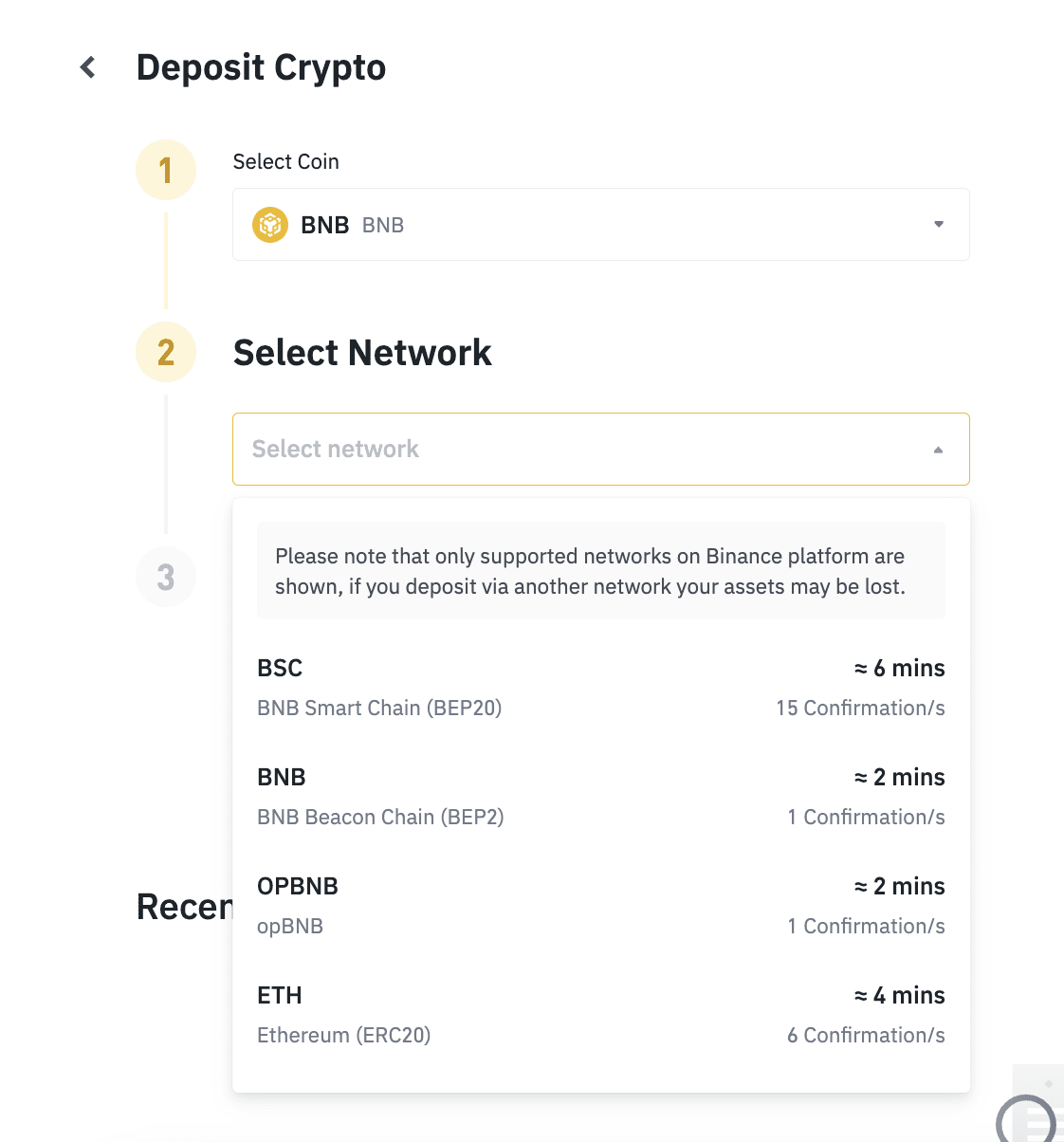
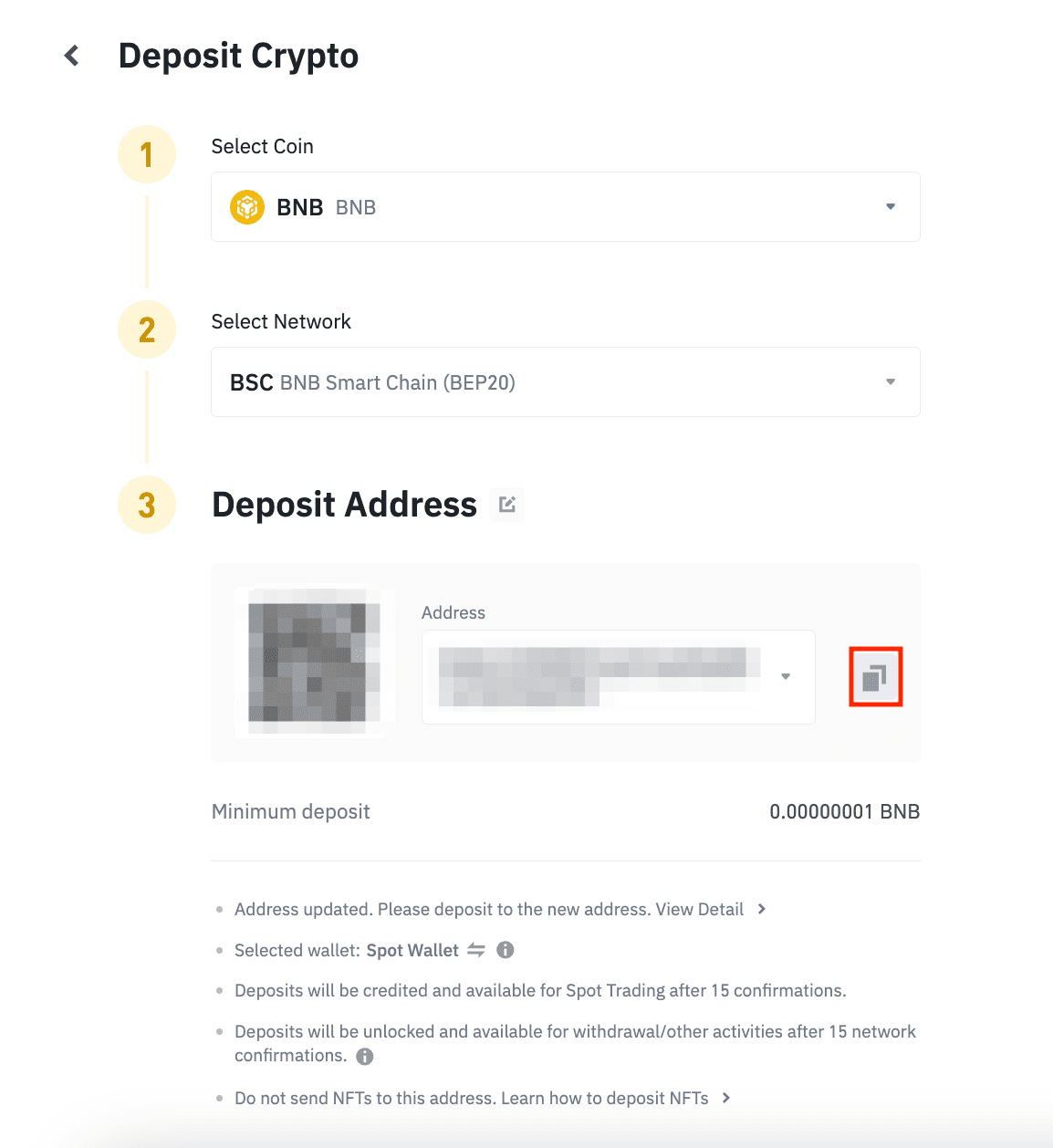
- Wrong network: Binance warns the funds might be lost and not recoverable.
- Memo / tag: required on some networks, for example XRP, XLM, ATOM and EOS. A deposit without it may not be credited.
- Network labels: BSC means BNB Smart Chain (BEP20), ETH means ERC20, TRX means TRON (TRC20), and a SegWit Bitcoin address starts with "bc1".
- Arrival time depends on the blockchain; the support page gives no fixed time.
Step 4 — Or buy crypto with a card
If you hold no crypto yet, you can buy with a card where your region supports it.
- Click "Buy Crypto".
- Enter the amount you want to spend, choose "Card (VISA/Mastercard)" and click "Buy".
- Click "Add New Card", enter the card details and click "Confirm".
- Check the payment details and fees, then click "Confirm". Complete your bank's one-time-password page if it appears.
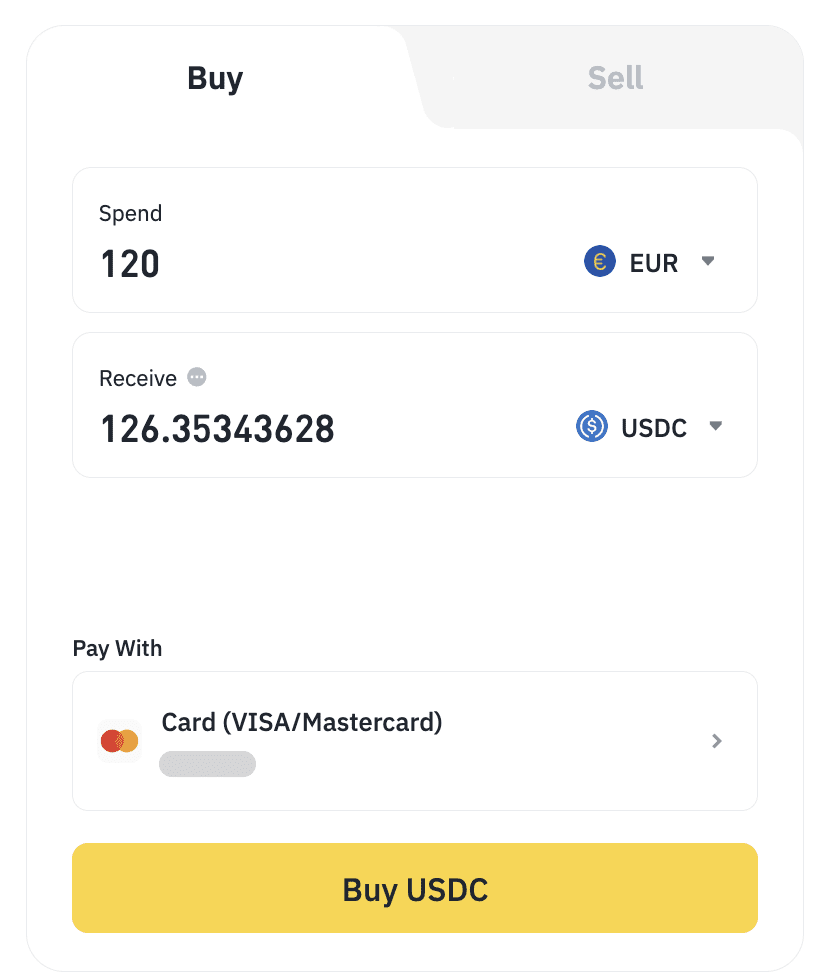
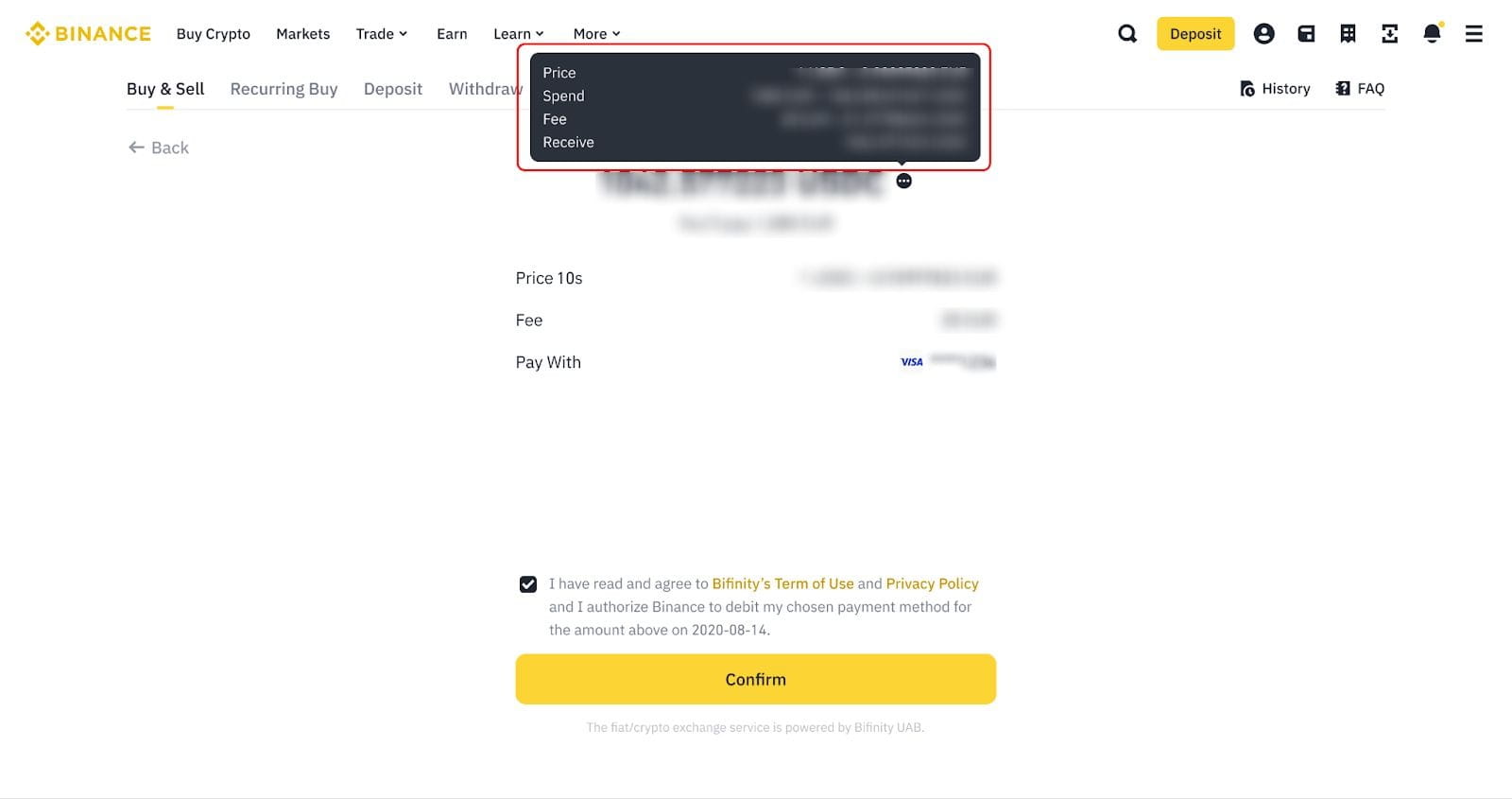
- Binance may recalculate the price and the amount of crypto before you confirm.
- Some banks treat the purchase as a cash-like transaction and add their own fee; ask your bank.
- You can save up to five cards. An order that is not completed in time becomes invalid; failed charges are refunded to the card, which can take days.
Step 5 — Place a spot order
Spot trading swaps one asset for another at the market price or at a price you set. Start with a small order to learn the screen.
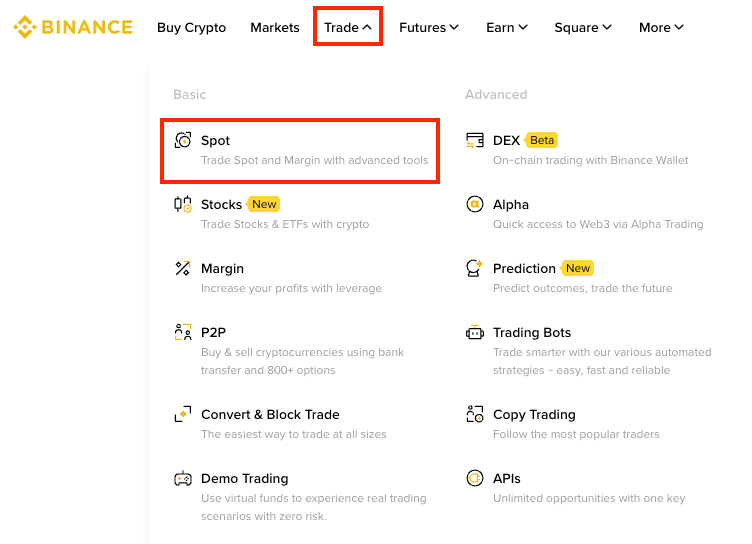
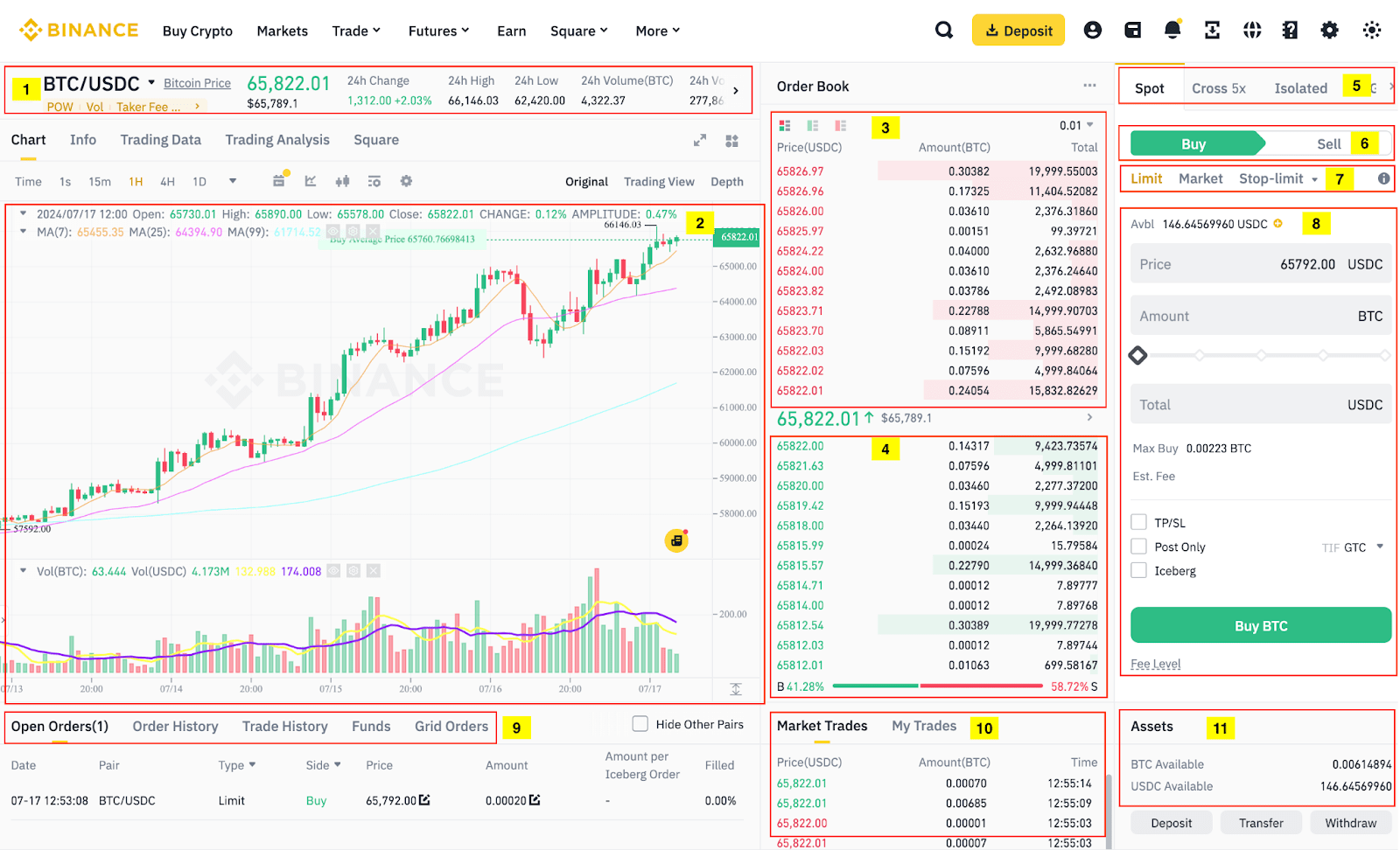
- Click "Trade" > "Spot".
- Choose the pair, for example BTC/USDC.
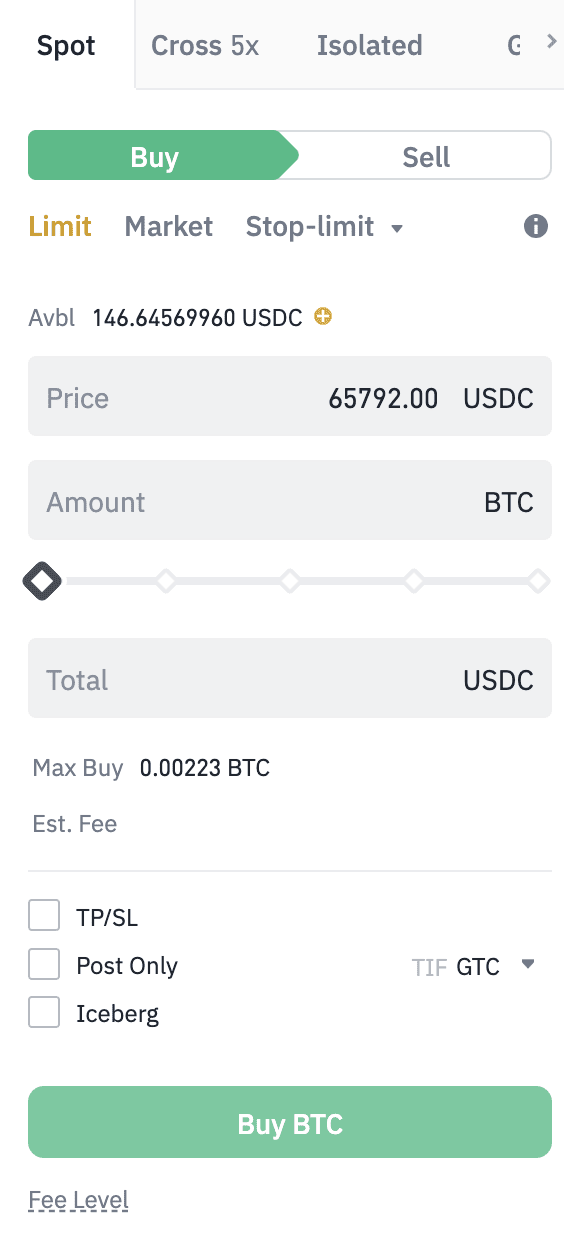
- Select "Buy", then the order type: "Limit" (fills when the market reaches your price), "Market" (fills as soon as possible) or "Stop-limit".
- Enter the price and amount. The bar under "Amount" sets a share of your balance.
- Click "Buy BTC" to place the order.
- Fees for a regular user are 0.1% maker and 0.1% taker; the fee page shows 0.075% for both in its "BNB 25% off" column. Your own rate appears on the fee page after you log in.
- A limit order can rest unfilled; a market order fills at whatever the book offers, which matters on thin pairs.
- By default an order can draw on the Spot, Funding and Earn accounts; the "Avbl" link lets you choose the source.
Step 6 — Withdraw
Withdrawals are final once they leave Binance. Check the address, the network and any memo before each one.
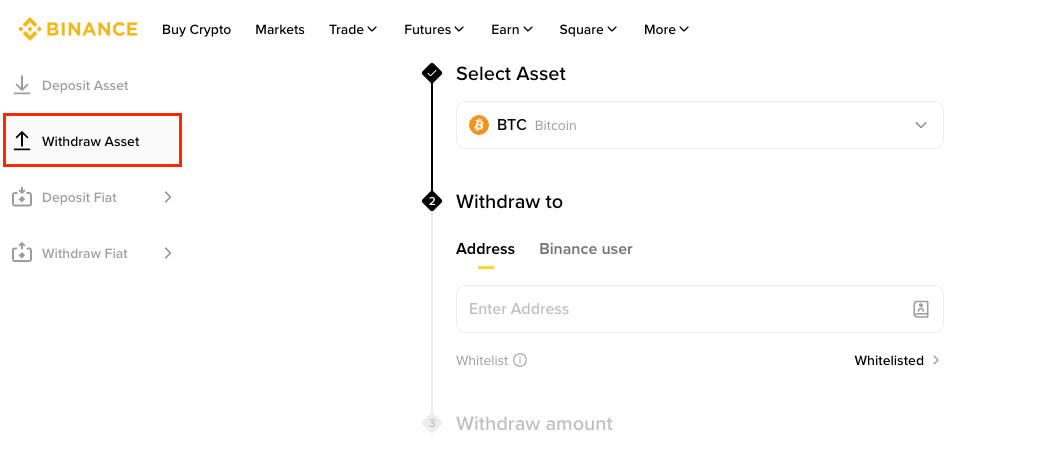
- Click "Assets" > "Overview", then "Withdraw" and "Withdraw Asset".
- Select the coin.
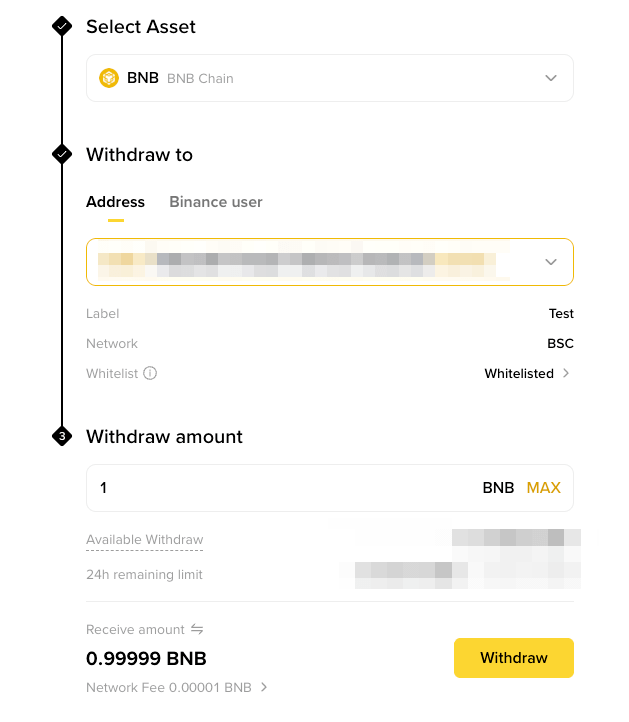
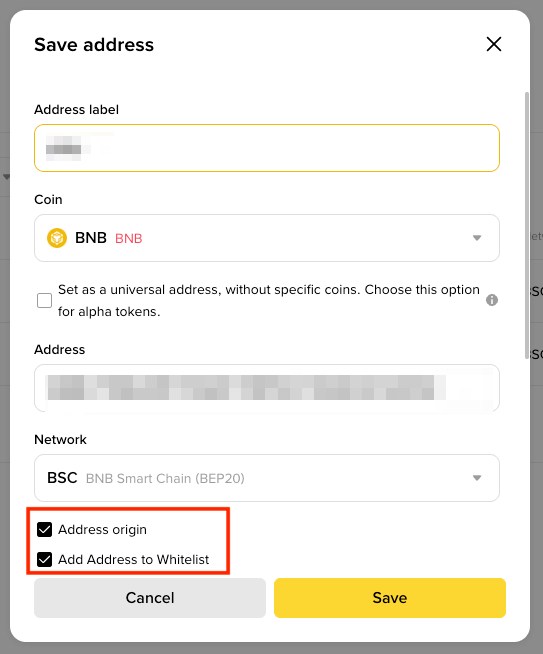
- Click "Address" and paste the destination, or pick a saved address. The network is selected automatically; confirm that the receiving platform supports it.
- Enter the amount, review the details and click "Continue".
- Complete the security verification (passkey or 2FA).
- Follow the request under "Orders" > "Transaction History".
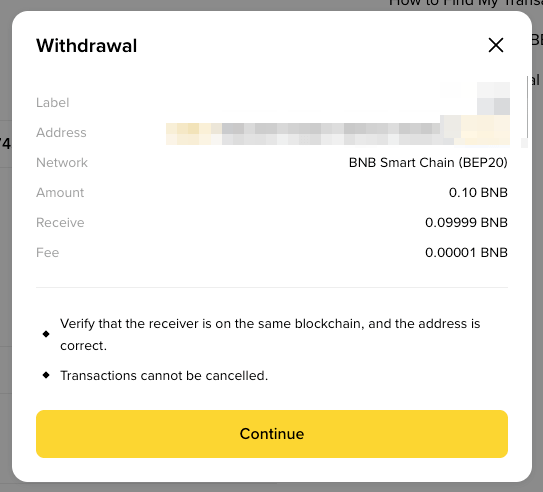
- Binance states that sending funds to the wrong network results in permanent loss.
- The first withdrawal to a new address shows a safety prompt; the support page suggests sending a small amount first.
- With the withdrawal whitelist turned on, the account can withdraw only to addresses you have whitelisted.
- To send to another Binance user, choose "Binance User" and enter their email, phone or Binance ID.
- The page gives no fixed fee or minimum; both are shown on the withdrawal screen for the coin and network you select.
Keeping the account safe
Binance holds the assets in your account, so account security is mostly about who can log in and where withdrawals can go.
- Turn on a passkey or an authenticator app, and do not rely on SMS alone.
- Turn on the withdrawal whitelist and save the addresses you use in the address book.
- Never share verification codes. Binance staff do not need them.
- Test each new address with a small amount before a large withdrawal.
- Reach the site by bookmark, and treat any message asking you to "verify your wallet" or move funds as a scam.
- Do not keep more on any exchange than you need for trading; move long-term holdings to a wallet you control.
Common questions
Can I use Binance without identity verification?
No for new users: Binance states that new users must be verified before depositing or trading. Unverified existing accounts can only withdraw and close positions.
How long does a Binance deposit take?
It depends on the blockchain. The deposit is credited after the network confirms it; you can follow it under Wallet > Transaction History.
What happens if I choose the wrong network?
Binance warns that funds sent on the wrong network may be lost and may not be recoverable. Match the network on both sides before sending.
What are the spot fees for a new account?
The fee page lists 0.1% maker and 0.1% taker for a regular user, and 0.075% for both in the "BNB 25% off" column.
Where do I enter a referral ID?
On the sign-up form. This site uses the referral ID WLFI47; Binance shows on the form whether a benefit applies in your region.
Sources
- Binance Support — How to register on the Binance website
- Binance Support — How to complete identity verification for a personal account (updated 2026-06-05)
- Binance Support — How to deposit crypto to Binance
- Binance Support — How to buy crypto with credit/debit card on the Binance website (updated 2025-12-09)
- Binance Support — How to spot trade on the Binance website (updated 2026-08-13)
- Binance Support — How to withdraw crypto from Binance (updated 2026-09-18)
- Binance — Spot trading fee rate
Steps and rules were read from the Binance Support pages above on 2026-11-13. Binance changes screens, fees and regional availability; where this page and Binance differ, Binance is right. This is not investment advice.
